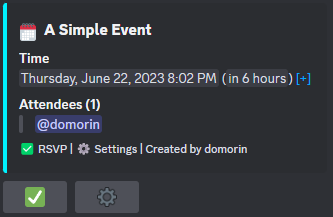
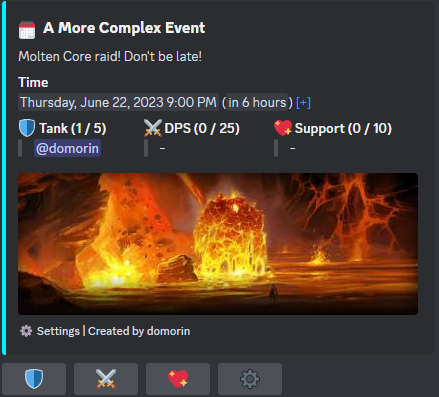
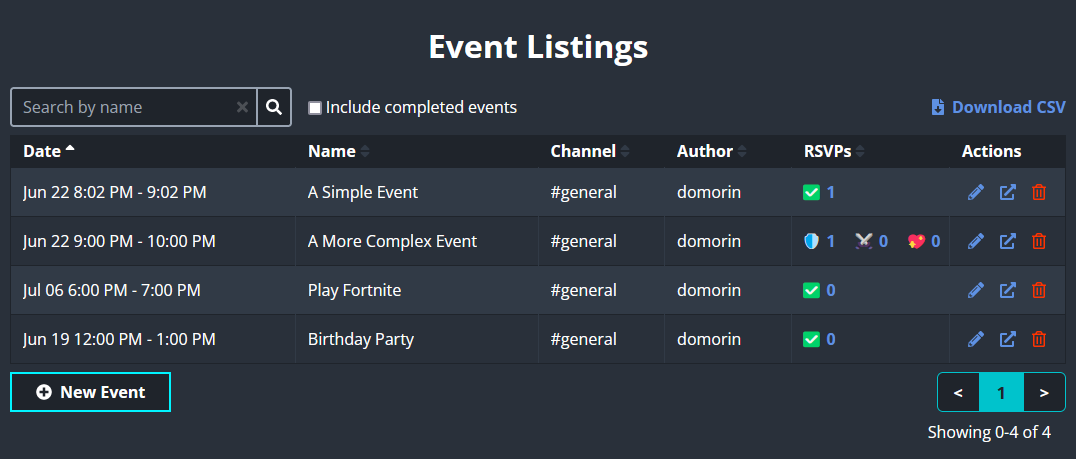
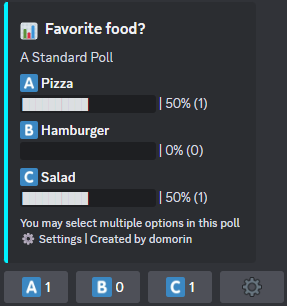
And you're good to go! Read on
to learn about all
sesh
has to offer.
Events
At its core,
sesh is
an event creation and management tool.
Events allow server members to RSVP to
an option of their choice to signify
their attendance.
Events can be created in one two ways:
/create: This slash command is the
simplest and fastest way to
create an event, right inside
Discord. Simply type /create and
input the parameters. Note that
the start time you input is
always parsed using the
server's timezone.
Web interface: Using the web interface to
create events allows you to
customize your event further -
including changing RSVP options,
setting the color, adding repeat
options, and more.
Note:
When
sesh
is first invited, every user is able
to create an event in channels they
have read and write access to. You
can modify permissions for this on
your server's settings page.
Basics
When an event is created, anyone with
access to the channel can RSVP to it.
Users who RSVP will be DMed a
confirmation, which allows them to set
reminders to the event if they choose.
Users are able to remove or change their
RSVP at any time before the event
starts. Server
adminsUsers with
Manage
sesh
permissions
admins
are able to add or remove users from the
event listings page on the
web interface.
By default, all times displayed on
events use
Discord timestamps. Discord timestamps are automatically
displayed in the local time of the user
viewing it, which means that you do not
have to worry about converting between
timezones. If you'd like to show
the time in a specific timezone instead,
you can enable
Use Legacy Timestamps
on your server settings page.
sesh will
send a message at the event's
starting time. This message will link
back to the original signup message and
also ping specificed roles and users.
For information about how to customize
or disable these messages, see
notifications.
All event features can be seen on the
event creation page on the
web interface.
Managing Events
Event creators and server
adminsUsers with
Manage
sesh
permissions
admins
have the ability to edit or delete a
sesh
event. To access these options, click on
the
⚙️
icon accompanying the event signup
message. This will trigger an ephemeral
message containing edit and delete
options.
Alternatively, you
can navigate to the event listings page
on the
web interface
view, or modify events. If you prefer
using Discord, you can also use the
/delete
command to promptly delete an event.
Note:
Though anyone in the server can
view the event listings page,
users will only be able to see
the events that take place in
channels that they have access
to.
Polls
Polls are a great way to quickly and
easily query your server members on
whatever you want. They consist of a
title and a list of options for users to
vote on. Votes will be instantly
reflected on poll message itself, giving
you a realtime easily digestable view of
the current results.
Polls can be created in one two ways:
/poll: This slash command is the
simplest and fastest way to create
an poll, simply type /poll in
Discord and input the parameters.
Web interface: Using the web interface to create
polls allows you to customize your
poll further - including setting an
end time, limiting votes to one per
user, time-based options, and more.
Note:
When
sesh
is first invited, every user is able
to create an poll in channels they
have read and write access to. You
can modify permissions for this on
your server's settings page.
Basics
When a poll is created, anyone with
access to the channel can vote on it. By
default, users are able to vote for as
many options as they like, though the
poll creator is able to limit this to
one vote per person if they choose.
sesh
supports two types of polls,
Standard Polls
and
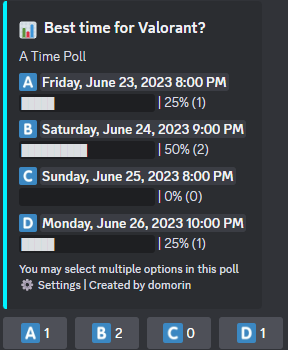
Time Polls. Standard polls contain simple
text-based options, whereas time polls
use
Discord timestamps
to display time choices in each
user's local timezone. Time polls
pair very well with events, allowing you
to easily find a time that works for
everyone and then creating an event off
of the best time.
Polls offer a convenient way for users
to actively participate by adding their
own options to the poll. By simply
clicking the
➕
button, individuals can contribute their
suggestions, making it ideal for
situations like polling for the
preferred game to play. This feature can
be disabled when creating a poll via the
web interface.
Other advanced poll features can be seen
on the poll creation page on the
web interface.
Managing Polls
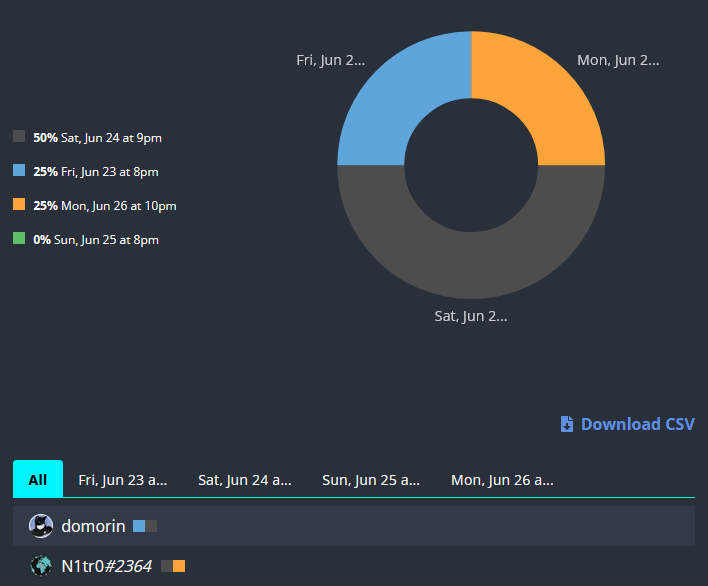
On non-anonymous polls, users can
see who voted for what option by
clicking the
⚙️
on the poll itself, and then going
to the
Voters
section. The poll listings page on
the
web interface
also supports a detailed breakdown
of individual votes.
Furthermore, poll creators and
server
adminsUsers with
Manage
sesh
permissions
admins
have the ability to edit, delete, or
end a
sesh
poll. To access these options,
simply click on the
⚙️
icon accompanying the poll signup
message. This will trigger an
ephemeral message containing edit,
end, and delete options.
Alternatively, you can navigate to
the poll listings page on the
web interface
to make edits or delete polls.
Time Finder
Time Finder is a powerful scheduling
tool that eliminates the endless
back-and-forth of coordinating group
events. Create availability polls to
find when everyone is free, allowing
members to vote on potential dates and
times through Discord or the web
interface.
Time Finder seamlessly integrates with
sesh's event creation system, making
it easy to transition from finding the
perfect time to creating your event.
Whether you're planning a gaming
session, meeting, or any group activity,
Time Finder helps you schedule with
confidence.
Time Finder can be created in two
ways:
Public Time Finder: Create a public Time Finder at
sesh.fyi/time-finder that anyone
with the link can access and vote
on.
Discord Dashboard: Create Time Finders through your
server's
sesh
dashboard for more advanced options
and server-specific features.
Note:
Time Finder is currently in Beta.
We're actively improving the
feature based on user feedback.
Key Features
Flexible Voting:
Members can vote through Discord
or the web interface, whichever
is most convenient.
Date and Time
Selection:
Choose specific dates and
optionally add time slots for
more granular scheduling.
Public or Private:
Create public Time Finders
accessible to anyone with the
link, or keep them private to
your server members.
Discord Integration:
Optionally post your Time Finder
to a Discord channel with
mentions and channel selection.
Premium Features
Premium subscribers get access to
additional Time Finder features:
Anonymous Voting:
Hide voter names so only the
poll creator and server admins
can see who voted.
Hidden Results:
Prevent users from seeing voting
results until after they've
voted themselves.
Role Restrictions:
Limit voting to specific Discord
roles for exclusive scheduling.
Once you've found the perfect time
through voting, you can easily create an
event from the results, making the
transition from scheduling to event
creation seamless.
Commands
/create
Create an event
Creates an event in the server.
Users will be able to RSVP to
the event, and opt into
reminders via DM. When the event
starts, an event starting
message will be sent to the
channel the event was created
in.
Once the event is created, users
can click the
⚙️
button in order to manage their
RSVP, view all attendees, or
modify (edit/delete) the event.
Only server
adminsUsers with
Manage
Sesh
permissions
admins
or the creator of the event can
modify the event.
Alternatively, you can create an
event using the
web interface. Use the web interface for
advanced features such as repeat
events, RSVP options, colors,
and more. The event listings
page on the web interface also
provides a way to add and remove
RSVPers from the event.
Parameters
title
The title of
the event.
Limited to
64
characters.
datetime
The time and
date for the
event. Must
be in the
future.
Times will
be parsed
using the
server's
timezone.
in 5
hours
8pm on
Friday
08/21 at
19:30
tomorrow
at 5pm
description
optional
The
description
of the
event.
Limited to
4096
characters.
duration
optional
The duration
of the event
as a string.
Defaults to
one hour.
1 hour
5 hours
30
minutes
1h
1h 30m
15s
2.5
hours
channel
optional
The channel
to send to
the event
to. If
unset, will
default to
the event
channel (if
one is set)
or the
channel the
command is
run in.
image
optional
The image to
display in
the event.
Must be a
valid image
URL. Valid
image URLs
should start
with http:
or https:,
and end in
an image
suffix, such
as .png,
.jpg, .gif,
etc.
on_create_mentions
optional
Users or
roles to
ping right
when the
event is
created.
on_start_mentions
optional
Users or
roles to
ping when
the event
starts.
Show 6 Optional
Parameters
Hide 6 Optional
Parameters
/poll
Create a poll
Creates a poll in the server.
Users in the channel will be
able to vote on the poll.
Results will be displayed in
real time.
Once the poll is created, users
can click the
⚙️
button to manage their vote(s),
view graphs, or modify
(edit/delete) the poll. Only
server
adminsUsers with
Manage
Sesh
permissions
admins
or the creator of the event can
modify the poll.
Alternatively, you can create a
poll using the
web interface. Use the web interface for
advanced features such as
time-based poll options, setting
a poll end time, customizing the
embed color, voting
restrictions, and more. You can
also view and manage all polls
in a server on the poll listings
page.
Parameters
title
The title of
the poll.
Limited to
252
characters.
options
The options
that users
will vote
on. Each
individual
option
should be
separated by
a comma.
Limited to
15 total
options,
with each
option
limited to
230
characters.
Cats,
Dogs,
Giraffes
Blue,
Orange,
Red,
Green,
Brown
Monday,
Tuesday,
Wednesday
description
optional
The
description
of the poll.
Limited to
4096
characters.
single_vote
optional
Whether to
limit users
to only be
able to vote
for one
option in
the poll, or
allow them
to vote for
multiple
options. If
unset, will
default to
the
Default
Polls to
Single
Vote Per
User
server
setting.
true
false
anonymous
optional
If set, poll
voter names
will be
fully hidden
from
everyone.
This setting
can not be
modified on
an already
created
poll.
image
optional
The image to
display for
the poll.
Must be a
valid image
URL. Valid
image URLs
should start
with http:
or https:,
and end in
an image
suffix, such
as .png,
.jpg, .gif,
etc.
mentions
optional
Users or
roles to
ping right
when the
poll is
created.
Show 5 Optional
Parameters
Hide 5 Optional
Parameters
/ai
Use AI to execute a command
sesh
AI is a GPT-powered command that
allows you to run
sesh
commands with natural language.
When running a command, you will
be shown the output and be asked
to confirm that it is correct
before any messages are sent.
sesh
AI currently supports the
following features:
Event Creation
Poll Creation
Personal Reminders
Event Lists
Usage of the /ai command is
subject to rate limits. Servers
with
sesh
premium have a higher rate
limit.
Parameters
prompt
The prompt
to use for
the AI
create
an event
called
"My
Event"
with
options
"Option
1"
and
"Option
2"
show me
my
events
in the
#business
channel
plan a
meeting
for 3pm
and send
me a
reminder
20
minutes
beforehand
/link
Create an importable calendar feed
of events
Generates a calendar feed URL
that you can add to Google
Calendar or other calendar
applications (ICS format). The
feed will contain all events in
the server viewable by the user
who ran the command. See the
channels parameter below for
filtering options.
Users can also generate a
personal events feed by clicking
the
📅
button. This feed will only
contain events that the user has
RSVPed to.
If the server has
Use Separate Channel
Calendars
enabled, the feed will only
contain events in the channel
the command is run in.
Server
adminsUsers with
Manage
Sesh
permissions
admins
can reset all event feeds on the
server settings page. This will
remove all current server feeds
(except personal feeds) and
require a new feed to be
generated by running the
/link
command again. Any users who
wish to continue receiving the
events feed will have to
resubscribe to the new feed.
Parameters
channels
optional
Channels to
limit the
calendar
feed to. Can
be one or
more
channels. If
server
setting
Use
Separate
Channel
Calendars
is enabled,
defaults to
the current
channel,
otherwise
defaults to
'all'.
#general
#events
#gaming
all
Show 1 Optional
Parameter
Hide 1 Optional
Parameter
/list
List events
Shows all ongoing and future
events in the server. Times will
be displayed in the
server's primary timezone.
Users can click the
🕐
button in order to display the
list in their own timezone. Use
the optional parameters below to
filter which events are shown.
Clicking the
🔄
button will turn the list into a
live list. Live lists are
constantly updated in order to
display all events in real time.
Live lists also support pinning
to the bottom of the channel via
the
📍
button.
If the server has
Use Separate Channel
Calendars
enabled, the list will only
contain events in the channel
the command is run in.
This command can also be used in
DMs with
sesh
to see a list of all the events
you have RSVPed to.
Parameters
channels
optional
Channels to
limit the
list output
to. Can be
one or more
channels. If
server
setting
Use
Separate
Channel
Calendars
is enabled,
defaults to
the current
channel,
otherwise
defaults to
'all'.
This
parameter
does nothing
if used in
DMs.
#general
#events
#gaming
all
limit
optional
How to limit
the length
of the list.
Can be a
duration or
an integer
representing
the total
number of
events to
display.
1 week
12 hours
3 months
5
25
Show 2 Optional
Parameters
Hide 2 Optional
Parameters
/settings
View and modify
sesh
settings
Gives a brief overview of
current
sesh
settings for the current server.
Settings include default RSVP
options for events, event and
poll channels, custom command
permissions, and more.
Users can click the
Modify Server Settings
button in order to edit the
settings. Though everyone in the
server can view the current
settings, only
adminsUsers with
Manage
Sesh
permissions
admins
can modify them. Users can also
reach the server settings page
by going to the
web interface
directly.
This command can also be used in
DMs with
sesh
to view and modify your personal
sesh
settings.
/remind
Create a one-off reminder
Create a simple one-off
reminder. The user who runs the
command will receive a DM at the
specified time. Other users can
subscribe to the reminder by
clicking the
🔔
button.
DMs from
sesh
must be enabled in order to
receive reminders.
Parameters
title
The title of
the
reminder.
datetime
The time and
date for the
reminder.
Must be in
the future.
in 5
hours
8pm on
Friday
08/21 at
19:30
tomorrow
at 5pm
/delete
Delete
sesh
events
Delete one or more events in the
server. The command will first
show a list of events matching
your query, then you can confirm
which of them you would like to
delete.
Server
adminsUsers with
Manage
Sesh
permissions
admins
can delete any events in the
server, whereas non-admins can
only delete events they have
made.
For a full list of deletable
events, use the event listings
page on the
web interface.
Parameters
name
optional
Event name
to filter
by.
Show 1 Optional
Parameter
Hide 1 Optional
Parameter
/timestamp
Generate a Discord timestamp
This command generates a Discord
timestamp based on the input
time. Discord timestamps are
displayed in each user's
local timezone, making it easy
to share times with your
community.
The command automatically parses
times using the user's
local timezone if it is set. If
not set, the times will be
parsed using the server's
timezone. You can override this
behavior by using the
parsing_timezone
parameter.
For mobile devices, it is
recommended to use the
format
parameter to specify a single
timestamp format. This makes it
easier to copy and paste the
desired timestamp to your
clipboard.
The time and
date to
generate a
timestamp
for. If the
parsing_timezone
parameter is
not used,
times will
be parsed
using the
user's
local
timezone if
it is set,
otherwise
the
server's
timezone
will be
used.
in 5
hours
8pm on
Friday
08/21 at
19:30
tomorrow
at 5pm
parsing_timezone
optional
The timezone
to use for
the
conversion.
It defaults
to the
user's
timezone if
set,
otherwise to
the
server's
timezone.
America/New_York
Europe/London
Asia/Tokyo
UTC
public
optional
If set to
true, the
generated
timestamp
will be sent
as a message
that
everyone can
see. It
defaults to
false.
format
optional
Specifies a
single
timestamp
format. If
not set, the
command will
respond with
all
available
timestamps.
This is
useful for
using the
command on
mobile
devices,
where
copying
messages is
more
cumbersome.
Show 3 Optional
Parameters
Hide 3 Optional
Parameters
/premium
View or activate
sesh
premium features
Shows info related to
sesh
premium. Premium members can click the
✨ Activate
button in order to enable
premium features on their
server.
This command can also be used in
DMs with
sesh
in order to manage all of your
activations.
/dashboard
View the web interface for this
server
Responds with an embed that
contains links to all the major
sesh
dashboard pages.
Parameters
public
optional
Whether to
make the
embed public
or private.
If
unspecified,
defaults to
private.
Show 1 Optional
Parameter
Hide 1 Optional
Parameter
/votepoints
Get vote points by voting for
sesh
on top.gg
Shows your current vote points
and links to the
sesh
vote page on top.gg. Voting for
sesh
helps spread the word and we
greatly appreciate it. You can
also use vote points to activate
and extend live lists.
Custom RSVP Options allow you to create
personalized response options for your
events, giving you complete control over
how attendees can respond.s
Custom Emoji Options
Create unique RSVP options using any
emoji from servers where both you and
sesh are
members. This allows you to tailor the
response options to match your
event's theme or your server's
style.
Waitlist Management
Set attendance limits for individual
RSVP options to manage capacity
effectively. When an option reaches its
limit, additional responses are
automatically added to a waitlist. If
someone removes their RSVP, the first
person on the waitlist receives a DM and
is automatically moved up.
Multiple RSVPs
Enable attendees to select multiple RSVP
options for a single event. This is
particularly useful for events where
people might participate in different
activities or when you need to gather
multiple pieces of information from each
attendee.
RSVP Presets
Save time by creating and reusing RSVP
option presets. Once you've
designed the perfect set of RSVP options
for a particular type of event, save it
as a preset to quickly apply those same
options to future events.
Sesh Calendar
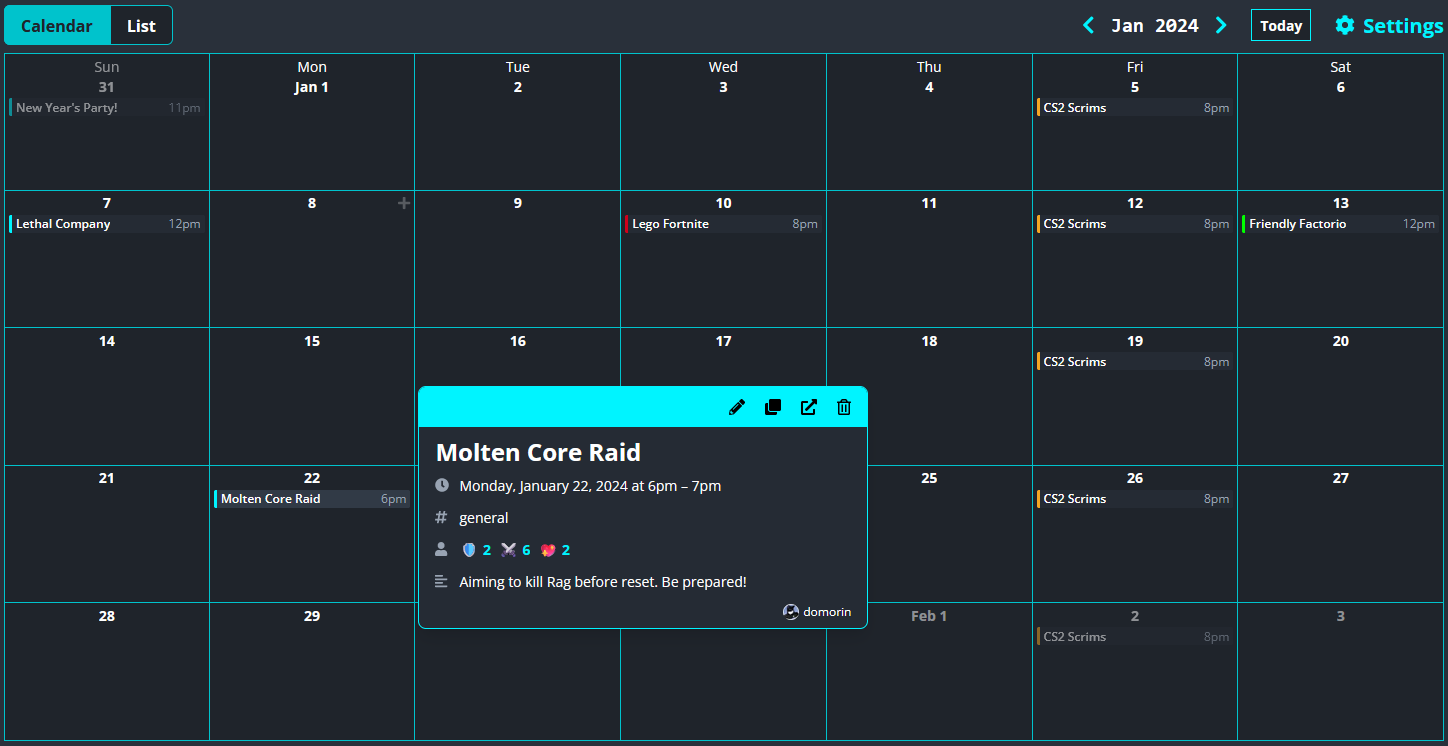
Users can view an easy to digest
overview of all events in their server
with the
sesh
calendar view. This view can be accessed
via the
dashboard
by any member of the server.
The calendar also allows
adminsUsers with
Manage
sesh
permissions
admins
to easily duplicate, edit, or delete
events. The calendar can be further
customized with the following settings:
Publicly Accessible
Enabling this setting will make the
calendar accessible to
anyone with the public URL. That means users who are not part of
your server can access it without having
to log in to the
sesh
dashboard. The public calendar will also
show all
sesh
events in all channels, even the private
ones. If you do not want all of your
events public to the world,
do not enable this setting.
The public URL is always
of the form
https://sesh.fyi/dashboard/ServerID, where ServerID is the ID of your
server.
Note:
Viewing the calendar at the
public URL can take up to 5
minutes to reflect changes,
whereas viewing it via the
sesh
dashboard will always be up to
date.
Show Discord Native Events
This setting determines whether
Discord native events
will appear in the calendar. Note that
enabling this setting will only show
current and future events, as Discord
does not provide a way to view past
events.
User Preferences
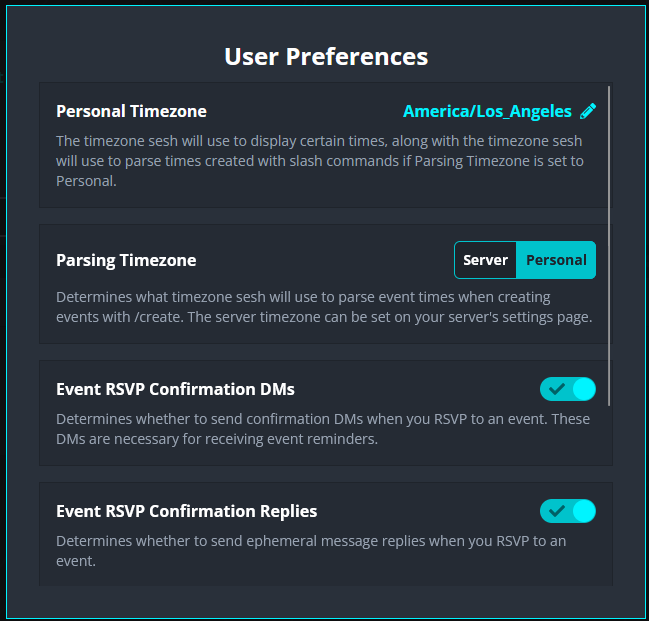
Users have the ability to set certain
preferences that affect how
sesh
functions for them. These settings can
be accessed and modified via the
dashboard
or by DMing
sesh/settings.
Personal Timezone
The timezone
sesh will
use to display certain times, along with
the timezone
sesh will
use to parse times created with slash
commands if Parsing Timezone is set to
Personal.
Parsing Timezone
Determines what timezone
sesh will
use to parse event times when creating
events with
/create. The server timezone can be set on
your server's settings page.
If
you have a personal timezone set, it is
recommended to set this to Personal, so
you can input times in your local
timezone without having to convert them
to your server's timezone first.
Event RSVP Confirmation DMs
Determines whether to send confirmation
DMs when you RSVP to an event. These DMs
are necessary for receiving event
reminders.
Event RSVP Confirmation Replies
Determines whether to send ephemeral
message replies when you RSVP to an
event.
Event RSVP Overlap Warning
Determines whether to send a DM when you
RSVP to an event that overlaps with
another event you're attending.
Poll Vote Confirmation Replies
Determines whether to send ephemeral
message replies when you vote on a poll.
Event & Poll Channels
If you'd like for a single channel
for all of your events or polls, you can
set a default event or poll channel on
your
server settings page. When enabled, all events or polls
made with
/create
or
/poll
will be sent to the event or poll
channel, regardless of where the command
originated.
Event and poll channels can be
customized in the following ways:
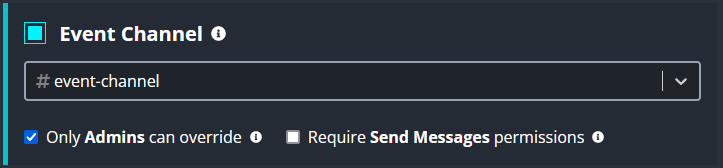
Only Admins can
override
- This setting determines which
users are able to
'override' the event
or poll channel. If enabled,
non-
adminsUsers with
Manage
sesh
permissions
admins
will
only
be able to send events or polls
to the specified channel, and
nowhere else. If disabled, users
will be able to send events and
polls to other channels as
normal, though any events or
polls made will still default to
the set channel, unless
explicitly modified.
Require Send Messages
permissions
- If enabled, users will not be
able to create events or polls
in the specified channel unless
they have 'Send
Messages' permissions for
that channel. If disabled, users
will be able to create events or
polls regardless of their
'Send Messages'
permissions.
Tip:
Disabling
Require Send Messages
permissions
is a good way to have a
read-only event or poll channel,
where users can create and
interact with events or polls,
but not send messages.
Discord Native Events
sesh allows
mirroring of events to Discord's native
events feature. Just check the "Mirror
to Discord Native Event" box on the
Create Event
page. Alternatively, you can enable
mirroring for every event on your server
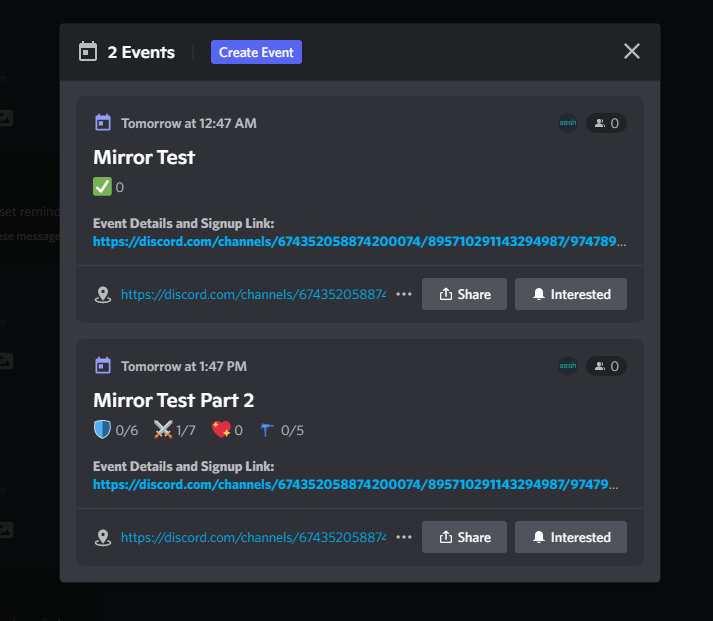
settings page.Discord native events will appear
prominently in your server. Event listings
will appear above your channel list, and a
badge is shown on your server icon while the
event is live.
When a sesh event is mirrored to a Discord native
event, any changes to one will be applied to
the other. For example if you rename the
native event, the sesh
event will also be renamed (and
vice-versa).
For sesh to recognize RSVPs, users must signup via
the sesh event message, and not the built-in
Discord event viewer. The signup message
will always be linked to in the description
of the native event.
Note:
Native events will be visible to
everyone in the server unless a
voice channel is set, in which case
the event will only be visible to
those with access to the voice
channel.
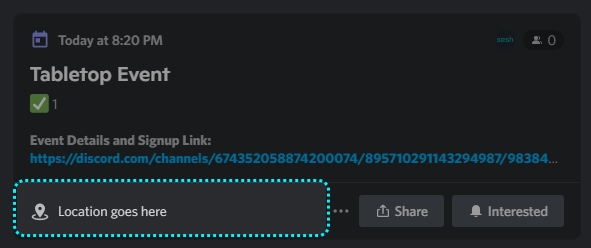
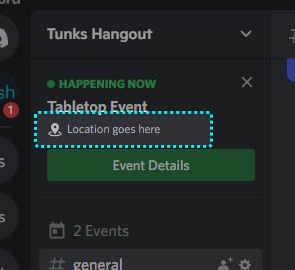
Location Field
Discord native events have a customizable
location field. The location appears in
multiple places around your native Discord
event.
You can choose one of
three options for customizing the Discord
native event location.
Event Signup Link
- The location will be set to a link
to the
sesh
signup message for the event.
Voice Channel
- The voice channel for the event.
When the event starts, the voice
channel will be visually highlighted
in Discord. Only users with access
to the voice channel will be able to
see the native event.
Stage Channel
- The stage channel for the event.
When the event starts, the stage
channel will be visually highlighted
in Discord. This option is only
available if there is a Stage
Channel present in the server.
Somewhere Else
- Any text you want, limited to 100
characters.
Native Event Description
Discord native events include a description
field that allows you to provide additional
context and information about your event.
sesh gives
you full control over this description,
allowing you to customize it independently
from your main
sesh event
description.
The native event
description supports
sesh's
powerful
placeholder
system, enabling you to create dynamic
descriptions that automatically update with
event information. You can use placeholders
to pull data from your
sesh event
description, or create entirely custom
content that's specific to the Discord
native event.
Note:
Native event descriptions must be
edited through the
sesh
web interface.
Native Event Image
You can set a custom banner image for your
Discord native events by providing an image
URL. The image will be displayed prominently
on the native event in Discord.
For
best results, use images that are at least
800px wide and 320px tall.
sesh
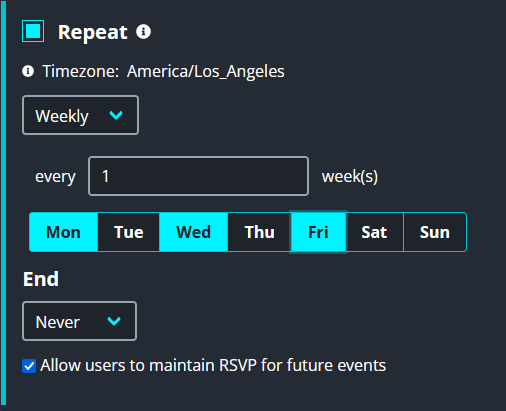
supports a wide range of options for
creating repeated events. When the
current occurrence of a single event
ends, a new event with the same settings
as the previous event will be
automatically created. This is useful
for events that occur on a regular
basis, such as weekly meetings or daily
reminders. Repeat options can be set for
individual events via the
web interface.
Users who RSVP to a repeated event will
have the option to stay RSVPed for all
future occurrences of that event, with
their individual reminders persisting as
well. This can be disabled by the event
creator by unchecking the
Allow users to maintain RSVP for
future events
checkbox.
Event creators also have the option of
skipping the current occurrence of the
event and going to the next one. This
can be done by deleting the event as
normal and selecting "Delete Only
This Event".
Timezone
Repeated events have an option to set
the timezone for the repeat. The
timezone determines how the repeat event
will handle daylight savings time. For
example, if you create a weekly event
that occurs every Sunday at 8:00 PM in
the
America/New_York
timezone, the event will occur at 8:00
PM EST during the winter, and 8:00 PM
EDT during the summer.
In
other words, the event will maintain the
same time of day in the timezone set,
regardless of daylight savings time.
Interval Options
sesh
supports a wide variety of repeat
intervals for events, including:
Yearly
- Repeat event on the same day every
year, or a certain day of the week
in a month, such as the second
Monday of February.
Monthly
- Repeat event on the same day each
month, or a certain day of the week
in a month, such as the first
Friday.
Weekly
- Repeat event on certain days every
X weeks, such as every other Monday.
Daily
- Repeat event every X days.
Hourly
- Repeat event every X hours.
End Options
You can also optionally choose when a
repeated event will stop repeating with
the following settings.
After
- Repeat event will stop repeating
after X occurrences.
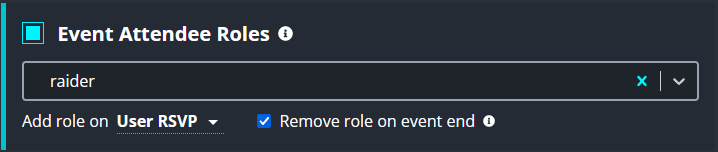
Attendee roles allow you to
automatically add Discord roles to users
who RSVP to specific options. This is
useful for giving only event attendees
access to private channels, or having a
single role you can ping for all
attendees. Attendee roles can be enabled
through the event create page or by
setting a server default via the
web interface.
Note:
Only RSVP options that have
Is Attendee
enabled will grant Attendee Roles.
Roles that can be selected are limited
to only ones that the user can manage
themselves. This is to prevent users
from being able to assign roles they
don't have access to. If you are
seeing a role as having invalid
permissions when it shouldn't, see
here.
Options
In addition to setting the role
itself, you are able to set when the
role is added to the RSVPers:
User RSVP
- The role is added immediately when
a user RSVPs to the event
Event Start
- The roles are added to all
attending users when the event
starts
Further, you can also set whether to
remove the role attendees when the
event ends. If an event duration is
not explicitly set, the role will be
removed one hour after the event
starts.
Google Calendar Sync
Use Google Calendar?
sesh
supports full two-way sync with direct
Google Calendar API integration for
speedy syncing. Just type
/link
in your server to get started.
Alternatively, you can navigate to your
server's settings page on the
dashboard
and go to the Sync tab.
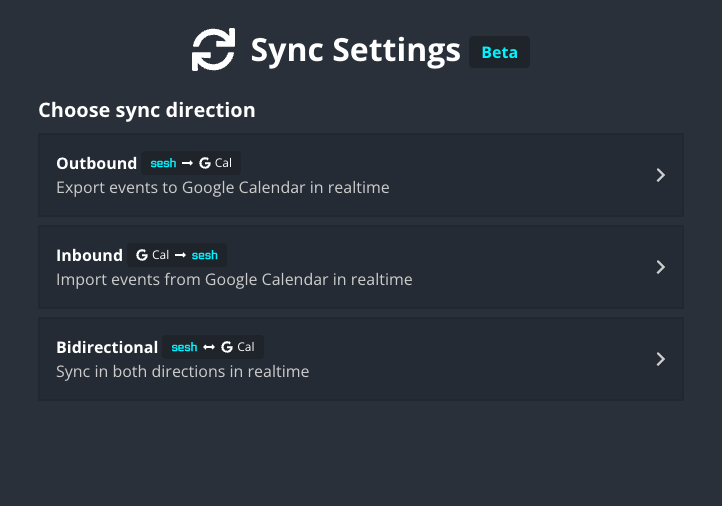
Once you authenticate with Google,
you'll be able to select which
direction you'd like to sync your
events in:
You'll also be able to configure
some additional settings, such as which
events to include, which Google Calendar
to sync to, and more.
Premium
servers have following benefits for
Google Calendar sync (for all users
on your server):
Unlocks Inbound and
Bidirectional syncs (5 per
user, per server)
Increases limit of Outbound
syncs to 5 (default 1 per
user, per server)
Known Issues and Limitations
Note that Google Calendar sync is still
in beta. There are a few known issues
we're working on, including:
Recurring events: Hourly repeat
events are not supported by Google
Calendar and will not sync
You may need to setup your sync
again in case of a permissions or
API error. In the future
sesh
will automatically resume syncing
when errors are resolved.
We're also planning to add some
more sync features soon, including:
Discord native event support
Troubleshooting
If Google Calendar sync is not working
as you expected, try logging out of your
Google account on the
sesh
dashboard and logging back in. If
you're still having trouble, you
can attempt to
unauthorize
sesh
from your Google account, and
reauthorize it by logging in.
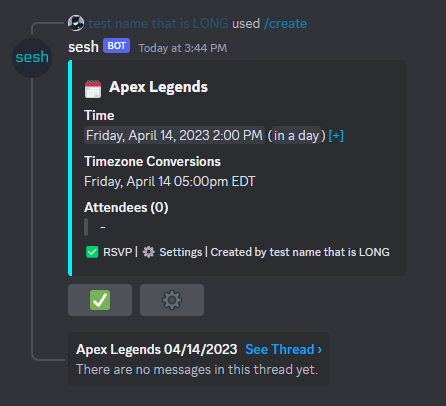
Event Threads
sesh
supports the ability to create a Discord
thread for every event. This is perfect
for keeping your server organized by
keeping individual event discussion in
one place. You can setup event threads
to be automatically created for every
event on your server settings page, or
you can create them per-event on the
create page.
Event threads can be customized in
various ways, including:
Thread Title
- The title of the thread
itself, defaults to the name of
the event. Can be customized
further via
placeholders.
Add Attendees on RSVP
- Determines whether to
auto-invite users to the event
thread when they signup. Note
that only users who choose RSVP
Options with
Is Attendee
enabled will be invited to
thread.
Event Start Message
Destination
- Where the event starting
notification will be sent,
either the thread itself or the
parent channel.
Auto Archive Duration
- Inactivity period of the
thread before Discord will
automatically hide the thread
from the channel list.
Event Notifications
Notifications allow you to send
reminders to any channel you like, at
any time before or when the event
starts. This is a useful feature to
remind your members of upcoming events,
or to notify them when an event
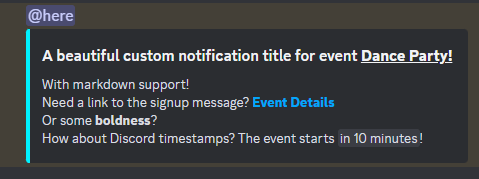
starts.The title and description of a
notification is completely customizable,
allowing you to change the title and
description of the notification message
sent. Notification text also supports
placeholders. You can modify an event's
notifications on the event create page,
or set server default notifications via
your server settings page.
Tip:
Want to ping all users who RSVPed?
Assign a role on RSVP with the
Attendee Roles
feature and set that role to be
mentioned with a notification.
Alternatively,
use the
Event Thread
feature with Auto Join enabled and
use a notification to mention
@everyone
in the thread.
There are multiple options available
for customizing notifications, such
as:
Fire Time
- The time when the notification
will be sent, relative to the
event start time.
Channel
- The channel the notification
will be sent to. If set to
event's channel, the
notification will be sent to the
same channel as the event signup
message.
Message
- The message of the
notification. Supports Discord
markdown along with
placeholders. Note that both the title and
the description can not be
empty.
Mentions
- Users or roles to ping when
the notification is sent.
Requires both the user and
sesh
to have valid permissions to
mention the roles or users.
Notifications are limited to 5 per
event, and you can not have two
notifications in the same channel at the
same time.
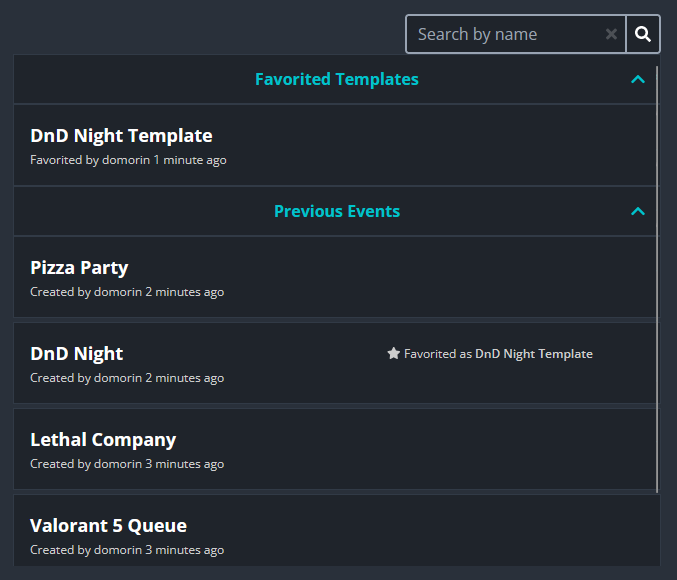
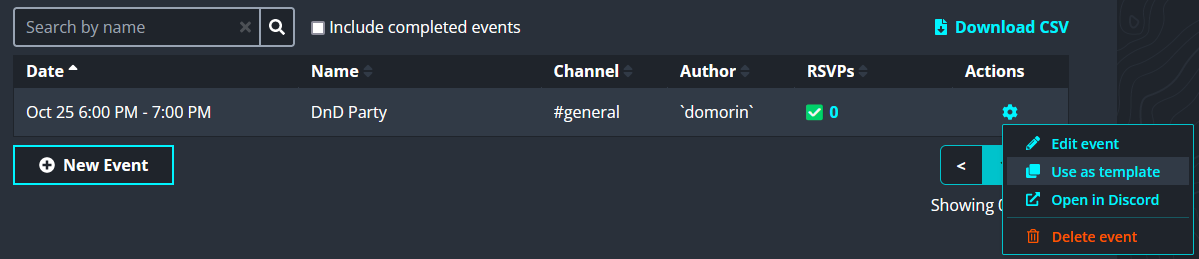
Event Templates
Event templates allow you to reuse,
share, and favorite existing events in
order to easily recreate them. Templates
can be created from any event, and can
be accessed from the event creation
page, event listings page, or your
server settings page on the
dashboard.
Premium
servers are able to save unlimited
templates, whereas non-premium
servers are limited to a total of
three favorites.
When you use a template to create an
event, all fields on the event creation
page will be automatically populated
with the template's values. Keep in
mind that anyone in your server can use
favorited templates, but the normal
permission checks will still apply.
For instance, if an event template is
initially configured with the channel
set to
#private-channel, any server user will still have the
ability to utilize the template.
However, the channel will be
automatically switched to one that they
have access to.
Note:
Templates can only be favorited by
those with Manage
sesh
permissions
Templates can be created from any
previous event, or by simply using the
current settings on the event create
page. Opting for the latter approach
enables you to save templates with
certain essential event fields left
blank, such as the start time.
You can view the details of an
individual template at any time by
clicking the
button on the template item.
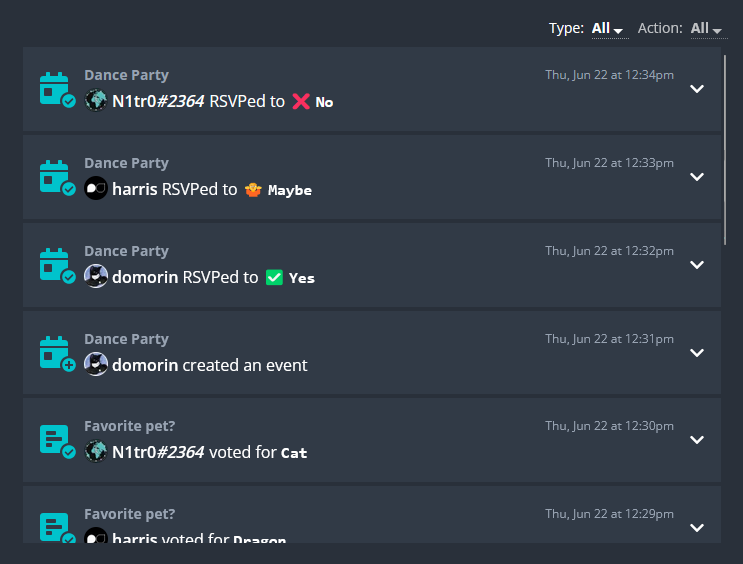
Server Logs
sesh
stores detailed logs of everything that
happens in regards to events, polls, and
settings.
Users are able to view the logs for
their server on their server settings
page via the
web interface. There is a log entry created for each
of the following actions, with support
for filtering by each one:
Event Create
Event Edit
Event RSVP
Event Remove RSVP
Event Delete
Poll Create
Poll Edit
Poll Add Option
Poll Vote
Poll Remove Vote
Poll Force End
Poll Delete
Settings Modify
Settings Premium Modify
At minimum, each log entry contains
the user who performed the action, along
with the type of the action itself.
Tip:
Want to limit who can view the
server logs? Use the permission
system in the General section of
your server's settings page to
determine which roles have access.
Premium
servers are able to view unlimited
logs, whereas non-premium servers
are limited to logs one day in the
past.
The Live List feature provides a
dynamic, real-time overview of all
events in your server. Using the
/list
command, you can create an automatically
updating list that keeps your community
informed about upcoming events.
Key Features
Real-time updates as events are
created, modified, or deleted
Automatic sorting by event date and
time
Shows event details including title,
date, and time
Perfect for community announcements
and event tracking
Usage
Simply use the
/list
command in any channel where you want
the live list to appear.
Role Restrictions allow you to control
who can participate in your events and
polls by specifying which Discord roles
are allowed to RSVP to events and vote
on polls. This powerful feature helps
you create exclusive events and polls
for specific groups within your
community.
Features
Restrict event RSVPs to specific
roles
Limit poll voting to designated
roles
Create exclusive events for VIP
members or specific groups
Maintain control over who can
participate in important polls
Setting Up Role Restrictions
When creating an event or poll, you can
specify which roles are allowed to
participate:
For events: Use the role restriction
option to select which roles can
RSVP
For polls: Set role restrictions to
control who can vote
Multiple roles can be selected for
each event or poll
Members must have at least one of
the specified roles to participate
Best Practices
Use role restrictions for exclusive
events like VIP meetups or team
meetings
Create polls that only specific
groups can vote on
Combine with other features like
attendee roles for maximum control
Regularly review and update role
restrictions as your community grows
sesh
allows you to close all RSVPs to an
event a certain amount of time before
the event starts. This is useful so you
can better plan your events and prevent
last minute RSVPs.
When RSVPs are closed, the RSVP buttons
will become disabled, and users will no
longer be able to RSVP to the event.
Note that users are still able to unRSVP
via the
⚙️
button on the event. In addition,
adminsUsers with
Manage
sesh
permissions
admins
will still be able to add or remove
users from the event via the web
interface.
Note:
adminsUsers with
Manage
sesh
permissions
admins
can still RSVP users manually via
the web interface after RSVPs close
This feature can be accessed via the
event creation page in the Attendees
section on the dashboard.